
I have for sale scandoubler ScanJuggler XAGA Lite. I used it only a few times. I bought it from dezz.
Specifications:
http://wiki.amigaspirit.hu/index.php/ScanJuggler_en
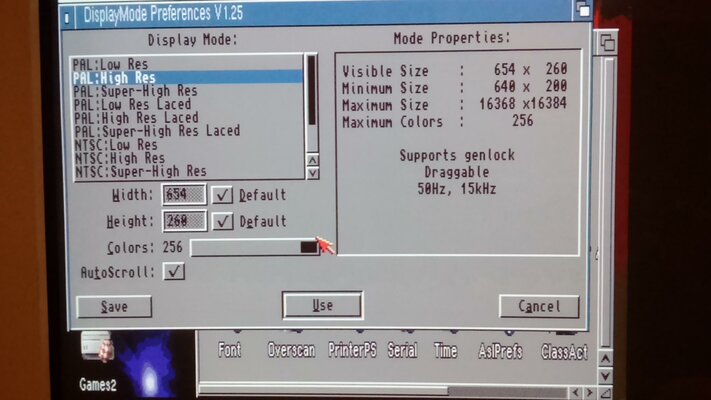
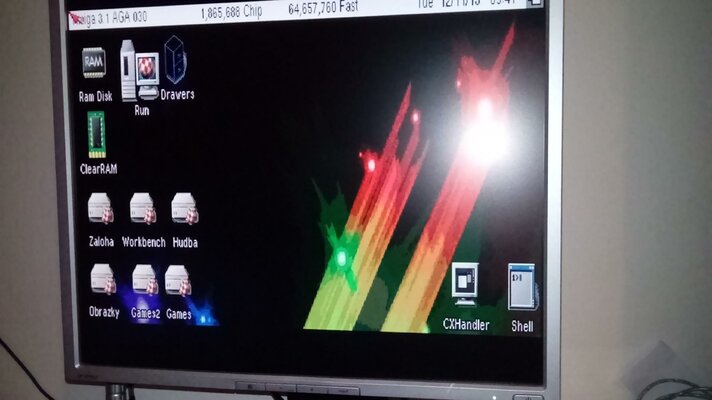
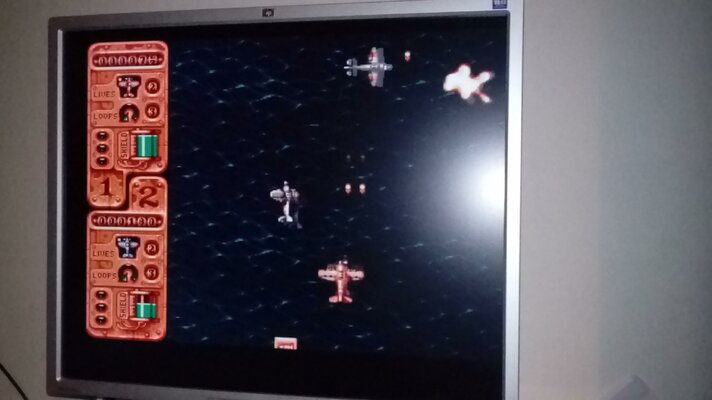
Scandoubler works well, only on my Amiga 1200 I have a problem with HAM resolution. Monitor goes into sleep mode. After changing resolution, monitor is working again. It's probably a bad combination amiga board and monitor. Dezz wrote me, that the development is still working, it is necessary to contact him to mail: scanjuggler@gmail.com. I think, it needed new flash.
Asking 150€ + shipping, via Paypal (gift, or buyer pays fees)
Please, follow these rules:
1. In case you use VGA-like screen-modes (Productivity, etc.), copy/move the VGAOnly tool from SYS:Storage/Monitors to SYS evs/Monitors. (In case you have edited the settings of them by MonEd or similar, reset these settings - clearing tooltypes from the iconfiles. Later you can try to modify them. The Total Clocks and Total Scanlines are supported now.)
2. Unplug the power connector and also those leading to an externally powered unit.
3. Remove the floppy drive and the upper metal shielding.
(Don't bend the motherboard during the operations.)
4. Be sure the legs on Lisa are not oxidised. Some chips develop a thin oxide layer on the legs that weaken electrical connection to sockets. In case of oxidisation the legs are dark, instead of metallic shine. It can be removed by a contact spray (use a non-oily one). Or you can scrape it off carefully (don't scrape it too hard). A special oxide eraser/rubber also exist for this kind of task.
5. In case you didn't removed the motherboard from the case, place a ~3mm pad under the machine, at below Lisa, so that a pressure from above don't bend the motherboard too much.
6. Place the card on Lisa the way connection pins point at the back of the machine. Don't press it yet.
7. Adjust it the way it slips half-way down by itself and it doesn't waggle.
8. Put four of your fingers near the corners of the card and press it down firmly so that it cracks onto Lisa on all sides.
9. Make sure the socket nearly touches the motherboard on all sides.
10. Plug the cable into the riser adapter first, then connect the riser onto the card, making sure you avoid misalignment.
(You can omit the riser adapter, if you want. But be even more careful with the alignment then. The red side of the cable must face the mark on the card.)
11. You can lead out the cable at above the ANT connector on the RF modulator (you need to remove also the lower shielding during this operation). Or, you can lead it out simply at the edge of the case, but this time you need to cut the thin leading (the 1mm thin one) by a section for the cable. (It doesn't affect the external aesthetics of the case.)
12. You can put the upper shielding back if you want, but only in case you don't use the HDD cradle as this way it would be lifted. Also, put sellotape onto the shielding above the card. Moreover, make sure the soldering joints of the riser adapter don't touch the shield as this would lead to a short circuit. Perhaps it's better to omit the riser this time. But I recommend putting the upper shielding aside alltogether.
13. Don't touch the card in operation, especially the little ICs at the lower right corner.
14. Plug everything in, the power connector last. Switch things on.
15. Run the auto adjustment on the monitor in every new screen-mode at first time. (You may want to do it with borderblanking on or off.)
16. Perhaps you need to adjust the "clock" in the menu of the monitor to make the image look best possible.
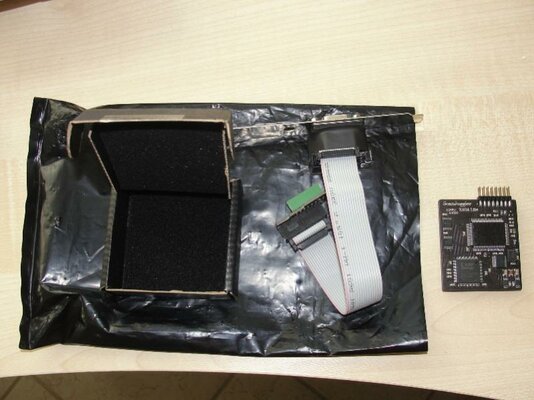
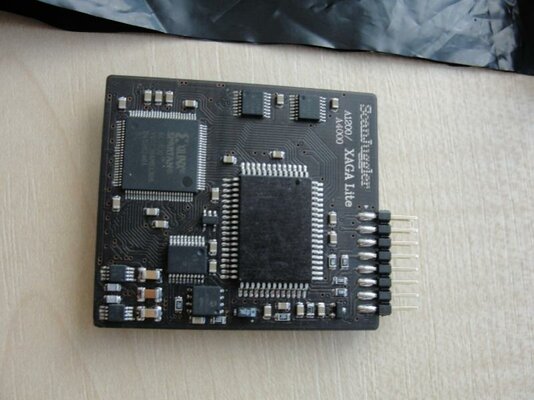
Specifications:
- Scandoubler for A1200 and A4000(D) machines
- Provides better analog image quality than the original chipset
- When fitted inside an A1200, it fits below the HDD frame and among other add-on cards
- Max. resolution: 768x580
- Color depth: 24/21 bit (depending on color mode)
- PAL/NTSC/Euro36 compatible
- Slightly reduces interlace blinking
- Also supports Productivity/Euro72/DBLxxx screen modes
- Supports border blanking
- HW support for DDC/CI (software support needed)
- Other special extras (TBA)
- Firmware and FPGA logics updateable from AmigaOS
- Compatible with PAL/NTSC/1Dx/2B machines
- Analog VGA output
http://wiki.amigaspirit.hu/index.php/ScanJuggler_en
Scandoubler works well, only on my Amiga 1200 I have a problem with HAM resolution. Monitor goes into sleep mode. After changing resolution, monitor is working again. It's probably a bad combination amiga board and monitor. Dezz wrote me, that the development is still working, it is necessary to contact him to mail: scanjuggler@gmail.com. I think, it needed new flash.
Asking 150€ + shipping, via Paypal (gift, or buyer pays fees)
Please, follow these rules:
1. In case you use VGA-like screen-modes (Productivity, etc.), copy/move the VGAOnly tool from SYS:Storage/Monitors to SYS
evs/Monitors. (In case you have edited the settings of them by MonEd or similar, reset these settings - clearing tooltypes from the iconfiles. Later you can try to modify them. The Total Clocks and Total Scanlines are supported now.)2. Unplug the power connector and also those leading to an externally powered unit.
3. Remove the floppy drive and the upper metal shielding.
(Don't bend the motherboard during the operations.)
4. Be sure the legs on Lisa are not oxidised. Some chips develop a thin oxide layer on the legs that weaken electrical connection to sockets. In case of oxidisation the legs are dark, instead of metallic shine. It can be removed by a contact spray (use a non-oily one). Or you can scrape it off carefully (don't scrape it too hard). A special oxide eraser/rubber also exist for this kind of task.
5. In case you didn't removed the motherboard from the case, place a ~3mm pad under the machine, at below Lisa, so that a pressure from above don't bend the motherboard too much.
6. Place the card on Lisa the way connection pins point at the back of the machine. Don't press it yet.
7. Adjust it the way it slips half-way down by itself and it doesn't waggle.
8. Put four of your fingers near the corners of the card and press it down firmly so that it cracks onto Lisa on all sides.
9. Make sure the socket nearly touches the motherboard on all sides.
10. Plug the cable into the riser adapter first, then connect the riser onto the card, making sure you avoid misalignment.
(You can omit the riser adapter, if you want. But be even more careful with the alignment then. The red side of the cable must face the mark on the card.)
11. You can lead out the cable at above the ANT connector on the RF modulator (you need to remove also the lower shielding during this operation). Or, you can lead it out simply at the edge of the case, but this time you need to cut the thin leading (the 1mm thin one) by a section for the cable. (It doesn't affect the external aesthetics of the case.)
12. You can put the upper shielding back if you want, but only in case you don't use the HDD cradle as this way it would be lifted. Also, put sellotape onto the shielding above the card. Moreover, make sure the soldering joints of the riser adapter don't touch the shield as this would lead to a short circuit. Perhaps it's better to omit the riser this time. But I recommend putting the upper shielding aside alltogether.
13. Don't touch the card in operation, especially the little ICs at the lower right corner.
14. Plug everything in, the power connector last. Switch things on.
15. Run the auto adjustment on the monitor in every new screen-mode at first time. (You may want to do it with borderblanking on or off.)
16. Perhaps you need to adjust the "clock" in the menu of the monitor to make the image look best possible.


