
*** MODS - If this is in the wrong section, please relocate to the proper place ***
So, I had quite the adventure trying to get my Mediator 4000D working with all components. So far, I have been able to get the following to work:
Voodoo 3
Soundblaster 128
Spider II USB
Fast Ethernet
TV Card
I am writing this document hoping to provide assistance to anyone that finds themselves in the same boat that I was in: attempting to piece together equipment without much documentation. Granted, ELBOX has been very helpful for me, but why not just publish some help on a much visited site like this?
Also - many of the photos contained herein are photos that I have taken from an old site, amiga-mediator.co.uk, which hasn't been online since 2003 or so! The directions haven't changed much, though, so the pictures are still good to go
Step 1 - Install WB 3.9
This part is self explanatory. I run ClassicWB3.9 on a Compact Flash card, and everything works great. I personally think that before you go piecing together your mediator, it's best to make sure you can get 3.9 with bb1+2 running on your a4000, and install the hardware next.
Step 2 - Install Mediator expansion board, card, PCI and Zorro Cards
My Mediator is a 4000D. It has PCI slots, as well as Zorro slots. On the 4000D, it doesn't matter what order the cards are installed in; every slot is essentially the same in the PCI side. Also, the P8/P9 power connector on the board is really just a "comfort item" according to ELBOX and isn't actually necessary...which is great, because mine is broken off
Step 3 - Install Mediator Software
For me, without a CDRom, I was able to install the Mediator software in UAE. The script on the CDRom will put all the necessary files where they need to go. However, things still won't work on modern equipment. You have to install the updates, in this order:
http://elbox.com/download/MediatorUP3.12.lha
http://elbox.com/download/MM_CD_UP2.0c.lha
Unarchive the MediatorUP3.12.lha first, put ALL the files in their appropriate directories, and don't worry about the install script for now. Then, do the same with the contents of MM_CD_UP2.0c.lha.
Then, download the following files and place them in the proper places:
http://elbox.com/download/newest/pci.library
place into Libs:
http://elbox.com/download/newest/FastEthernet.device
place into Devs:Networks
http://elbox.com/download/newest/Virge.card
place into Libs icasso96
At this time, if you have a Spider II, you may make a Devs:USBHardware, and place spider.device from your install disk there.
Finally, run the MedConfig program from the MM_CD_2.0 update. **DO THIS FROM THE COMPUTER WITH THE HARDWARE, NOT UAE!!!**
As an added bonus, during the Mediator software install from the original CDRom, you will configure and install your TV card, and not have to worry about it later
Step 4 - Configure Graphics
I can only speak about the Voodoo3 3000!!! So be careful and cautious when overclocking your cards, these old cards are becoming valuable and rare!
Obviously, you'll need up to date Picasso 96:
http://aminet.net/driver/video/Picasso96.lha
Just install like anything else, no big deal Just make sure you install drivers for the Cybervision 64/3D card - we'll modify those files to have settings for Voodoo. And if you have both a cv64/3d AND a voodoo (like me), you'll still be fine, so don't worry. Just follow most of the defaults, I won't insult anyone's intelligence here, and then reboot.
Now, after reboot, go to your Devs:Monitors directory and either copy your CVision64 driver to Voodoo, or just rename it. If you want to keep the cv64 driver set up as-is, copy it...otherwise rename.
Now, open up the Voodoo file (icon info) and change the settings. Make sure you use Enter after changing things, because Amigas are funny about that
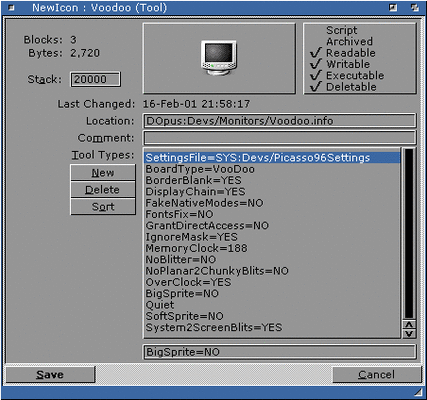
Here is a grab of the tooltypes that you'll want. Not too much different from a cv64/3d.
Now, different Voodoo cards run at different clock speeds. A voodoo3 runs at 166mhz, but can be overclocked safely to around 200mhz. I don't personally overclock, because the cards are so rare and already get so hot! But it is up to you. Here's the default safe clock speeds:
[FONT=Tahoma, Verdana, Arial]Voodoo Banshee [/FONT][FONT=Tahoma, Verdana, Arial]125MHz Initially[/FONT] [FONT=Tahoma, Verdana, Arial]
Voodoo3 2000 [/FONT][FONT=Tahoma, Verdana, Arial]125MHz Initially[/FONT]
[FONT=Tahoma, Verdana, Arial]Voodoo3 3000[/FONT][FONT=Tahoma, Verdana, Arial] 166MHz[/FONT] [FONT=Tahoma, Verdana, Arial]
Voodoo3 3500 [/FONT][FONT=Tahoma, Verdana, Arial]183MHz[/FONT]
[FONT=Tahoma, Verdana, Arial]Voodoo3 3500SE [/FONT][FONT=Tahoma, Verdana, Arial]200MHz[/FONT]
[FONT=Tahoma, Verdana, Arial]Voodoo4 4500 [/FONT][FONT=Tahoma, Verdana, Arial]166MHz[/FONT]
[FONT=Tahoma, Verdana, Arial]Voodoo5 5500 [/FONT][FONT=Tahoma, Verdana, Arial]166MHz
[/FONT]Going higher is at your own risk!
Next, we need to set up screenmodes with Picasso96. Save these tooltypes in the Voodoo icon, and browse to your system prefs. Launch Picasso96Mode. At this time, you'll need a monitor plugged into the standard amiga video output, as well as a suitable VGA monitor to the voodoo card (or equivalent). When you launch Picasso96Mode, it will warn you:
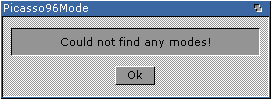
No problem! We haven't defined anything. So, we will do this now. This part isn't really complicated once you get the hang of it, but it IS a little goofy. So, trial and error, and we should be good to go. It would be helpful for you to know all your monitor specs at this time as it will aid you in making proper screenmodes.
So now, you'll see this:
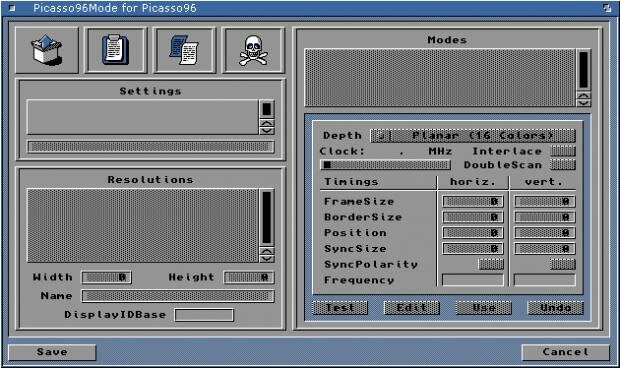
There are three icons. The one furthest to the left is for "new." It looks like:

Click and drag on this icon into the "Settings" area, and you'll have a new undefined setting. Right click on your new setting, choose "Attach Setting" and attach it to your board, "Board 0: Voodoo" or equivalent. Now, you are identifying screenmodes for your card.
Now, click on "New" again and drag it into the "Resolutions" area. You should have a resolution there now, [FONT=Tahoma, Verdana, Arial] '640x 480 $50001000 active' or something along those lines. We will define and test screenmodes in this setting now.
Now, click and drag "New" yet again and drop it into "Modes." You'll get something like [/FONT][FONT=Tahoma, Verdana, Arial] '256colors 38kHz 71Hz active' or similar. Just below the "Modes" area, you'll see a selector for "Depth" - set that to "HiColor" and click the "Test" icon. If everything works, you have identified a screenmode! If not, do some trial and error or ask for help I personally didn't mess with any of the settings below "Depth" because everything just worked for me...luckily. Now, you'll need to duplicate this setting, since it's easier to duplicate than to create a new one for each screenmode. To do this, click on your new Mode, drag it onto the "Duplicate" icon - it looks like a white paper on top of a blue paper, and drop it there. It'll ask if you want to accept changes on your newest screenmode, click yes, and it will save that screenmode for you.
Hint 1: Today I noticed that my monitor can handle 1280x1024, but would only accept screenmodes up to 800x600. I tried de-selecting the "Interlace" button on 1024x768, 1280x1024, and moving the slider so that the scan would be 60hz. Presto, everything works perfectly. I'm currently running my workbench in 1280x1024!
Hint 2: Sometimes, things don't work very well. What I did is after every mode that I created and tested that worked, I clicked on "Save" at the bottom left corner, otherwise you have to occasionally reboot and do it all over again.
Now, create and test all the four different Modes for your Resolution. Save. Then, make other resolutions, do the same thing, save. Easy but tedious
Recommended resolutions:
[/FONT][FONT=Tahoma, Verdana, Arial]320 x 200 [/FONT][FONT=Tahoma, Verdana, Arial]Quake on a 68k Amiga[/FONT]
[FONT=Tahoma, Verdana, Arial]320 x 240 [/FONT][FONT=Tahoma, Verdana, Arial]Simon the SorcererII and other RTG games use this.[/FONT]
[FONT=Tahoma, Verdana, Arial]480 x 384 [/FONT][FONT=Tahoma, Verdana, Arial]Useful for Payback[/FONT] [FONT=Tahoma, Verdana, Arial]
640 x 480 [/FONT][FONT=Tahoma, Verdana, Arial]Nightlong uses this[/FONT]
[FONT=Tahoma, Verdana, Arial]800 x 600[/FONT][FONT=Tahoma, Verdana, Arial] A separate web browser screen[/FONT] [FONT=Tahoma, Verdana, Arial]
1024 x 768 [/FONT][FONT=Tahoma, Verdana, Arial]A separate web browser screen or Workbench[/FONT]
[FONT=Tahoma, Verdana, Arial]1120 x 832 [/FONT][FONT=Tahoma, Verdana, Arial]Workbench and Art Programs[/FONT]
[FONT=Tahoma, Verdana, Arial]1240 x 1024[/FONT][FONT=Tahoma, Verdana, Arial] Workbench and most other stuff all on one screen.[/FONT] [FONT=Tahoma, Verdana, Arial]
1440 x 1144 [/FONT][FONT=Tahoma, Verdana, Arial]Everything all at once. (what I run)[/FONT] [FONT=Tahoma, Verdana, Arial]
1600 x 1200 [/FONT][FONT=Tahoma, Verdana, Arial]Good for getting a headache on a 17" ;-)[/FONT]
Enjoy!
Now, after you save and reboot, load up your "Screenmode" prefs icon, and set workbench to use one of your new screenmodes. This looks 10x better than a standard gfx card/flickerfixer in my opinion! WHDLoad games do NOT, as far as I know, work with this, though. Many apps won't. A good workaround is a multisync monitor with smart switching.
Step 5 - Configure Sound
Configuring sound is easy, no big deal here. When you copied over all of the drivers and used the Mediator CD earlier, the files should have all been placed in the proper places. So, this is pretty simple. To control volume, go to Prefs and open up Mixer. Or, just open a cli and type "Mixer" and adjust volume.
The program that will control your sound card is AHI. So, go to prefs and open up that bad boy, select your soundcard from the list, and save it. Done, and done. For my SB128, I use SB128 HiFi 16 Bit Stereo ++. Your mileage may vary.
Step 6 - Configure Networking
I will be very basic about this, because my installation was basic. Bloodwych has included Miami in ClassicWB. I use this extensively, because DHCP is so simple to use Basically, install whatever TCP software you plan to use. Then, use the ethernet driver that is appropriate. I use a 10/100 fast ethernet, so I point the TCP software to fastethernet.device, set it up as DHCP, and it just works.
Step 7 - Configure USB
ELBOX sent me an email today in which they stated they have developed a spider.device that is compatible with Poseidon 4.4 (the free version)!!!!
So, do this:
Grab spider.device 3.21 from http://eu.shop.elbox.com/downloads_mediator.html
Go to http://platon42.de/index2.html and get Poseidon 4.4.
Then follow the old instructions to enable your device.
***BELOW ARE OLD INSTRUCTIONS!!!***
This is the unfortunate reality of the Mediator right now. ELBOX doesn't have its own USB software, but they still sell the card. The required software is Poseidon 3.8. The latest (free) version of Poseidon is 4.4. Version 3.8 is the only one I could get to work with the Spider II, but it is not free, and keyfiles are no longer available. So, you have some homework to do
Assuming you have installed poseidon 3.8 and a valid keyfile, it's as simple as launching Trident. Don't do anything once it's running. Instead, open a CLI, and type:
AddUSBHardware Devs:USBHardware/spider.device 2
AddUSBHardware Devs:USBHardware/spider.device 0
AddUSBHardware Devs:USBHardware/spider.device 1
After that, follow the instructions for using Poseidon/Trident to install all the different devices you need But your spider drivers will work! Make sure to save!!!
One little caveat: The only drivers for the Spider II that will work are included on a floppy disk with the card, from ELBOX. They don't have the drivers on their website. If you email them and ask, they will send them to you, but they're not publicly available for some reason. If someone needs these drivers, let me know I don't know if there's any rules against hosting a current spider.device file.
If anyone has any questions, please let me know! If anyone has any updates, alternative installs, ideas, etc, let me know and I'll add it. Hope this helps some people.
So, I had quite the adventure trying to get my Mediator 4000D working with all components. So far, I have been able to get the following to work:
Voodoo 3
Soundblaster 128
Spider II USB
Fast Ethernet
TV Card
I am writing this document hoping to provide assistance to anyone that finds themselves in the same boat that I was in: attempting to piece together equipment without much documentation. Granted, ELBOX has been very helpful for me, but why not just publish some help on a much visited site like this?
Also - many of the photos contained herein are photos that I have taken from an old site, amiga-mediator.co.uk, which hasn't been online since 2003 or so! The directions haven't changed much, though, so the pictures are still good to go
Step 1 - Install WB 3.9
This part is self explanatory. I run ClassicWB3.9 on a Compact Flash card, and everything works great. I personally think that before you go piecing together your mediator, it's best to make sure you can get 3.9 with bb1+2 running on your a4000, and install the hardware next.
Step 2 - Install Mediator expansion board, card, PCI and Zorro Cards
My Mediator is a 4000D. It has PCI slots, as well as Zorro slots. On the 4000D, it doesn't matter what order the cards are installed in; every slot is essentially the same in the PCI side. Also, the P8/P9 power connector on the board is really just a "comfort item" according to ELBOX and isn't actually necessary...which is great, because mine is broken off
Step 3 - Install Mediator Software
For me, without a CDRom, I was able to install the Mediator software in UAE. The script on the CDRom will put all the necessary files where they need to go. However, things still won't work on modern equipment. You have to install the updates, in this order:
http://elbox.com/download/MediatorUP3.12.lha
http://elbox.com/download/MM_CD_UP2.0c.lha
Unarchive the MediatorUP3.12.lha first, put ALL the files in their appropriate directories, and don't worry about the install script for now. Then, do the same with the contents of MM_CD_UP2.0c.lha.
Then, download the following files and place them in the proper places:
http://elbox.com/download/newest/pci.library
place into Libs:
http://elbox.com/download/newest/FastEthernet.device
place into Devs:Networks
http://elbox.com/download/newest/Virge.card
place into Libs
icasso96At this time, if you have a Spider II, you may make a Devs:USBHardware, and place spider.device from your install disk there.
Finally, run the MedConfig program from the MM_CD_2.0 update. **DO THIS FROM THE COMPUTER WITH THE HARDWARE, NOT UAE!!!**
As an added bonus, during the Mediator software install from the original CDRom, you will configure and install your TV card, and not have to worry about it later
Step 4 - Configure Graphics
I can only speak about the Voodoo3 3000!!! So be careful and cautious when overclocking your cards, these old cards are becoming valuable and rare!
Obviously, you'll need up to date Picasso 96:
http://aminet.net/driver/video/Picasso96.lha
Just install like anything else, no big deal
Just make sure you install drivers for the Cybervision 64/3D card - we'll modify those files to have settings for Voodoo. And if you have both a cv64/3d AND a voodoo (like me), you'll still be fine, so don't worry. Just follow most of the defaults, I won't insult anyone's intelligence here, and then reboot.Now, after reboot, go to your Devs:Monitors directory and either copy your CVision64 driver to Voodoo, or just rename it. If you want to keep the cv64 driver set up as-is, copy it...otherwise rename.
Now, open up the Voodoo file (icon info) and change the settings. Make sure you use Enter after changing things, because Amigas are funny about that
Here is a grab of the tooltypes that you'll want. Not too much different from a cv64/3d.
Now, different Voodoo cards run at different clock speeds. A voodoo3 runs at 166mhz, but can be overclocked safely to around 200mhz. I don't personally overclock, because the cards are so rare and already get so hot! But it is up to you. Here's the default safe clock speeds:
[FONT=Tahoma, Verdana, Arial]Voodoo Banshee [/FONT][FONT=Tahoma, Verdana, Arial]125MHz Initially[/FONT] [FONT=Tahoma, Verdana, Arial]
Voodoo3 2000 [/FONT][FONT=Tahoma, Verdana, Arial]125MHz Initially[/FONT]
[FONT=Tahoma, Verdana, Arial]Voodoo3 3000[/FONT][FONT=Tahoma, Verdana, Arial] 166MHz[/FONT] [FONT=Tahoma, Verdana, Arial]
Voodoo3 3500 [/FONT][FONT=Tahoma, Verdana, Arial]183MHz[/FONT]
[FONT=Tahoma, Verdana, Arial]Voodoo3 3500SE [/FONT][FONT=Tahoma, Verdana, Arial]200MHz[/FONT]
[FONT=Tahoma, Verdana, Arial]Voodoo4 4500 [/FONT][FONT=Tahoma, Verdana, Arial]166MHz[/FONT]
[FONT=Tahoma, Verdana, Arial]Voodoo5 5500 [/FONT][FONT=Tahoma, Verdana, Arial]166MHz
[/FONT]Going higher is at your own risk!
Next, we need to set up screenmodes with Picasso96. Save these tooltypes in the Voodoo icon, and browse to your system prefs. Launch Picasso96Mode. At this time, you'll need a monitor plugged into the standard amiga video output, as well as a suitable VGA monitor to the voodoo card (or equivalent). When you launch Picasso96Mode, it will warn you:
No problem! We haven't defined anything. So, we will do this now. This part isn't really complicated once you get the hang of it, but it IS a little goofy. So, trial and error, and we should be good to go. It would be helpful for you to know all your monitor specs at this time as it will aid you in making proper screenmodes.
So now, you'll see this:
There are three icons. The one furthest to the left is for "new." It looks like:
Click and drag on this icon into the "Settings" area, and you'll have a new undefined setting. Right click on your new setting, choose "Attach Setting" and attach it to your board, "Board 0: Voodoo" or equivalent. Now, you are identifying screenmodes for your card.
Now, click on "New" again and drag it into the "Resolutions" area. You should have a resolution there now, [FONT=Tahoma, Verdana, Arial] '640x 480 $50001000 active' or something along those lines. We will define and test screenmodes in this setting now.
Now, click and drag "New" yet again and drop it into "Modes." You'll get something like [/FONT][FONT=Tahoma, Verdana, Arial] '256colors 38kHz 71Hz active' or similar. Just below the "Modes" area, you'll see a selector for "Depth" - set that to "HiColor" and click the "Test" icon. If everything works, you have identified a screenmode! If not, do some trial and error or ask for help
I personally didn't mess with any of the settings below "Depth" because everything just worked for me...luckily. Now, you'll need to duplicate this setting, since it's easier to duplicate than to create a new one for each screenmode. To do this, click on your new Mode, drag it onto the "Duplicate" icon - it looks like a white paper on top of a blue paper, and drop it there. It'll ask if you want to accept changes on your newest screenmode, click yes, and it will save that screenmode for you.Hint 1: Today I noticed that my monitor can handle 1280x1024, but would only accept screenmodes up to 800x600. I tried de-selecting the "Interlace" button on 1024x768, 1280x1024, and moving the slider so that the scan would be 60hz. Presto, everything works perfectly. I'm currently running my workbench in 1280x1024!
Hint 2: Sometimes, things don't work very well. What I did is after every mode that I created and tested that worked, I clicked on "Save" at the bottom left corner, otherwise you have to occasionally reboot and do it all over again.
Now, create and test all the four different Modes for your Resolution. Save. Then, make other resolutions, do the same thing, save. Easy but tedious
Recommended resolutions:
[/FONT][FONT=Tahoma, Verdana, Arial]320 x 200 [/FONT][FONT=Tahoma, Verdana, Arial]Quake on a 68k Amiga[/FONT]
[FONT=Tahoma, Verdana, Arial]320 x 240 [/FONT][FONT=Tahoma, Verdana, Arial]Simon the SorcererII and other RTG games use this.[/FONT]
[FONT=Tahoma, Verdana, Arial]480 x 384 [/FONT][FONT=Tahoma, Verdana, Arial]Useful for Payback[/FONT] [FONT=Tahoma, Verdana, Arial]
640 x 480 [/FONT][FONT=Tahoma, Verdana, Arial]Nightlong uses this[/FONT]
[FONT=Tahoma, Verdana, Arial]800 x 600[/FONT][FONT=Tahoma, Verdana, Arial] A separate web browser screen[/FONT] [FONT=Tahoma, Verdana, Arial]
1024 x 768 [/FONT][FONT=Tahoma, Verdana, Arial]A separate web browser screen or Workbench[/FONT]
[FONT=Tahoma, Verdana, Arial]1120 x 832 [/FONT][FONT=Tahoma, Verdana, Arial]Workbench and Art Programs[/FONT]
[FONT=Tahoma, Verdana, Arial]1240 x 1024[/FONT][FONT=Tahoma, Verdana, Arial] Workbench and most other stuff all on one screen.[/FONT] [FONT=Tahoma, Verdana, Arial]
1440 x 1144 [/FONT][FONT=Tahoma, Verdana, Arial]Everything all at once. (what I run)[/FONT] [FONT=Tahoma, Verdana, Arial]
1600 x 1200 [/FONT][FONT=Tahoma, Verdana, Arial]Good for getting a headache on a 17" ;-)[/FONT]
Enjoy!
Now, after you save and reboot, load up your "Screenmode" prefs icon, and set workbench to use one of your new screenmodes. This looks 10x better than a standard gfx card/flickerfixer in my opinion! WHDLoad games do NOT, as far as I know, work with this, though. Many apps won't. A good workaround is a multisync monitor with smart switching.
Step 5 - Configure Sound
Configuring sound is easy, no big deal here. When you copied over all of the drivers and used the Mediator CD earlier, the files should have all been placed in the proper places. So, this is pretty simple. To control volume, go to Prefs and open up Mixer. Or, just open a cli and type "Mixer" and adjust volume.
The program that will control your sound card is AHI. So, go to prefs and open up that bad boy, select your soundcard from the list, and save it. Done, and done.
For my SB128, I use SB128 HiFi 16 Bit Stereo ++. Your mileage may vary.Step 6 - Configure Networking
I will be very basic about this, because my installation was basic. Bloodwych has included Miami in ClassicWB. I use this extensively, because DHCP is so simple to use
Basically, install whatever TCP software you plan to use. Then, use the ethernet driver that is appropriate. I use a 10/100 fast ethernet, so I point the TCP software to fastethernet.device, set it up as DHCP, and it just works. Step 7 - Configure USB
ELBOX sent me an email today in which they stated they have developed a spider.device that is compatible with Poseidon 4.4 (the free version)!!!!
So, do this:
Grab spider.device 3.21 from http://eu.shop.elbox.com/downloads_mediator.html
Go to http://platon42.de/index2.html and get Poseidon 4.4.
Then follow the old instructions to enable your device.
***BELOW ARE OLD INSTRUCTIONS!!!***
This is the unfortunate reality of the Mediator right now. ELBOX doesn't have its own USB software, but they still sell the card. The required software is Poseidon 3.8. The latest (free) version of Poseidon is 4.4. Version 3.8 is the only one I could get to work with the Spider II, but it is not free, and keyfiles are no longer available. So, you have some homework to do
Assuming you have installed poseidon 3.8 and a valid keyfile, it's as simple as launching Trident. Don't do anything once it's running. Instead, open a CLI, and type:
AddUSBHardware Devs:USBHardware/spider.device 2
AddUSBHardware Devs:USBHardware/spider.device 0
AddUSBHardware Devs:USBHardware/spider.device 1
After that, follow the instructions for using Poseidon/Trident to install all the different devices you need
But your spider drivers will work! Make sure to save!!!One little caveat: The only drivers for the Spider II that will work are included on a floppy disk with the card, from ELBOX. They don't have the drivers on their website. If you email them and ask, they will send them to you, but they're not publicly available for some reason. If someone needs these drivers, let me know
I don't know if there's any rules against hosting a current spider.device file.If anyone has any questions, please let me know! If anyone has any updates, alternative installs, ideas, etc, let me know and I'll add it. Hope this helps some people.
Last edited:


 sob sob.:roll:


